Make a short Christmas stop-motion scene with one toy
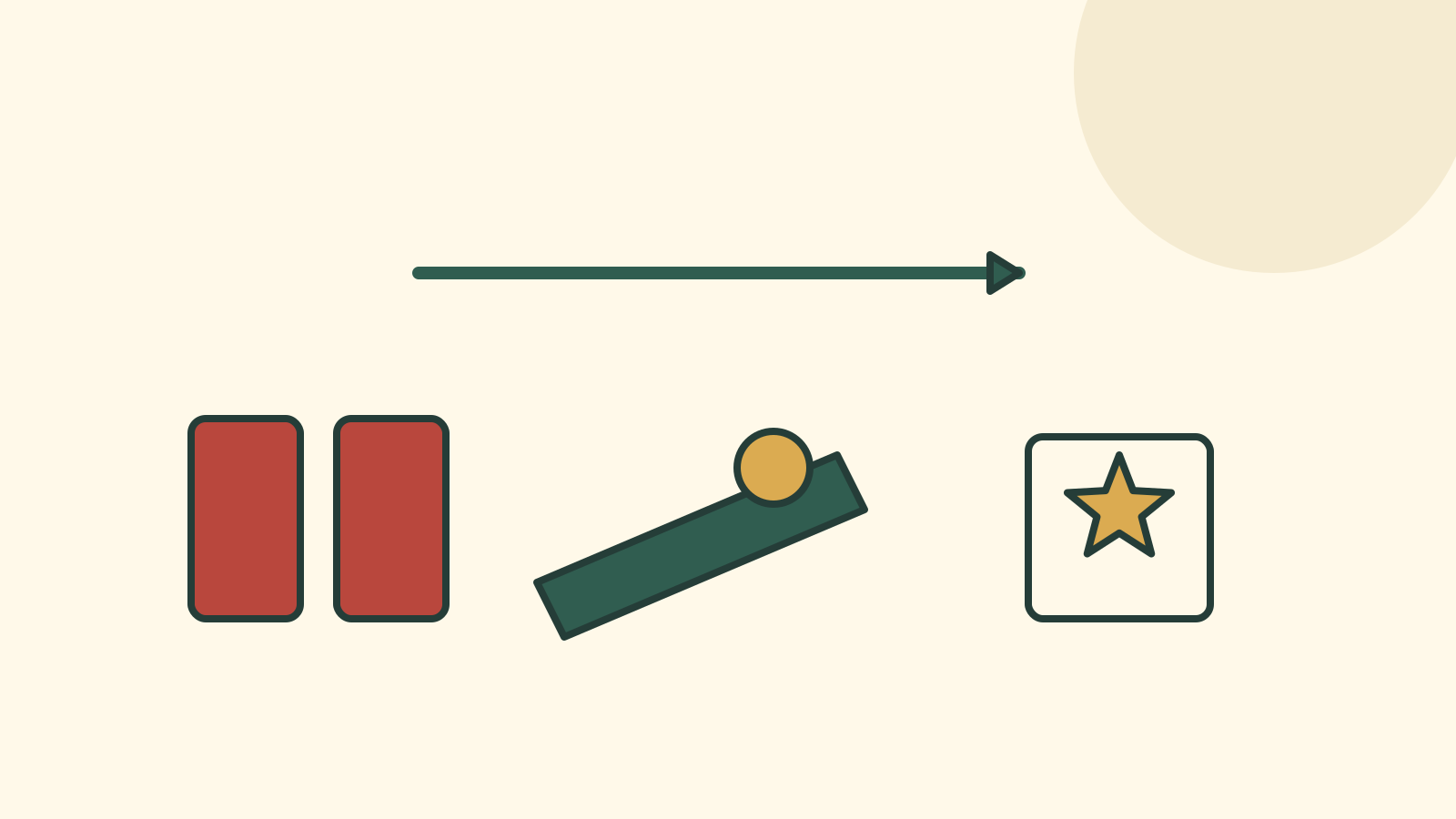
A toy can appear to move when a sequence of still pictures is played in order. Begin with one simple action: a small figure approaches a paper gift. Keep the camera still, move the toy a little between frames and export a clip you can actually play. A folder of photographs is a source sequence, not yet the finished animation.
Choose a toy and filming setup suitable for the participants. Work on a stable surface with an adult managing equipment as needed. Frame only the small scene; you do not need to record children, a private room or identifying family details.
Check your available tool first
Use a stop-motion or editing tool you already have permission to use. Before building the scene, check whether it accepts still images, lets you order them and exports a playable video. Confirm any account, payment or sharing requirements from that tool’s current documentation. Do not begin by assuming that a free preview includes export.
Make a tiny test with three photographs and try exporting it. Open the exported file separately from the project. This checks the route before you spend time on a longer sequence.
Fix the frame and the lighting
Place the camera where it will stay. Mark the toy’s starting position and the paper gift’s position on a base sheet. Keep the marks outside the final frame if you do not want them visible. Avoid changing the lighting between shots.
Take the first photograph. Move the toy a small, deliberate distance toward the gift, remove your hand and take the next. Repeat until the toy reaches it. Do not move the camera along with the toy; that changes the whole background.
| After each frame | Check |
|---|---|
| Toy position | One intended change |
| Camera | Still at the fixed position |
| Hands | Out of the frame |
| Background | No accidental new objects |
| Sequence | Photograph saved in the intended order |
Preview before adding a second action
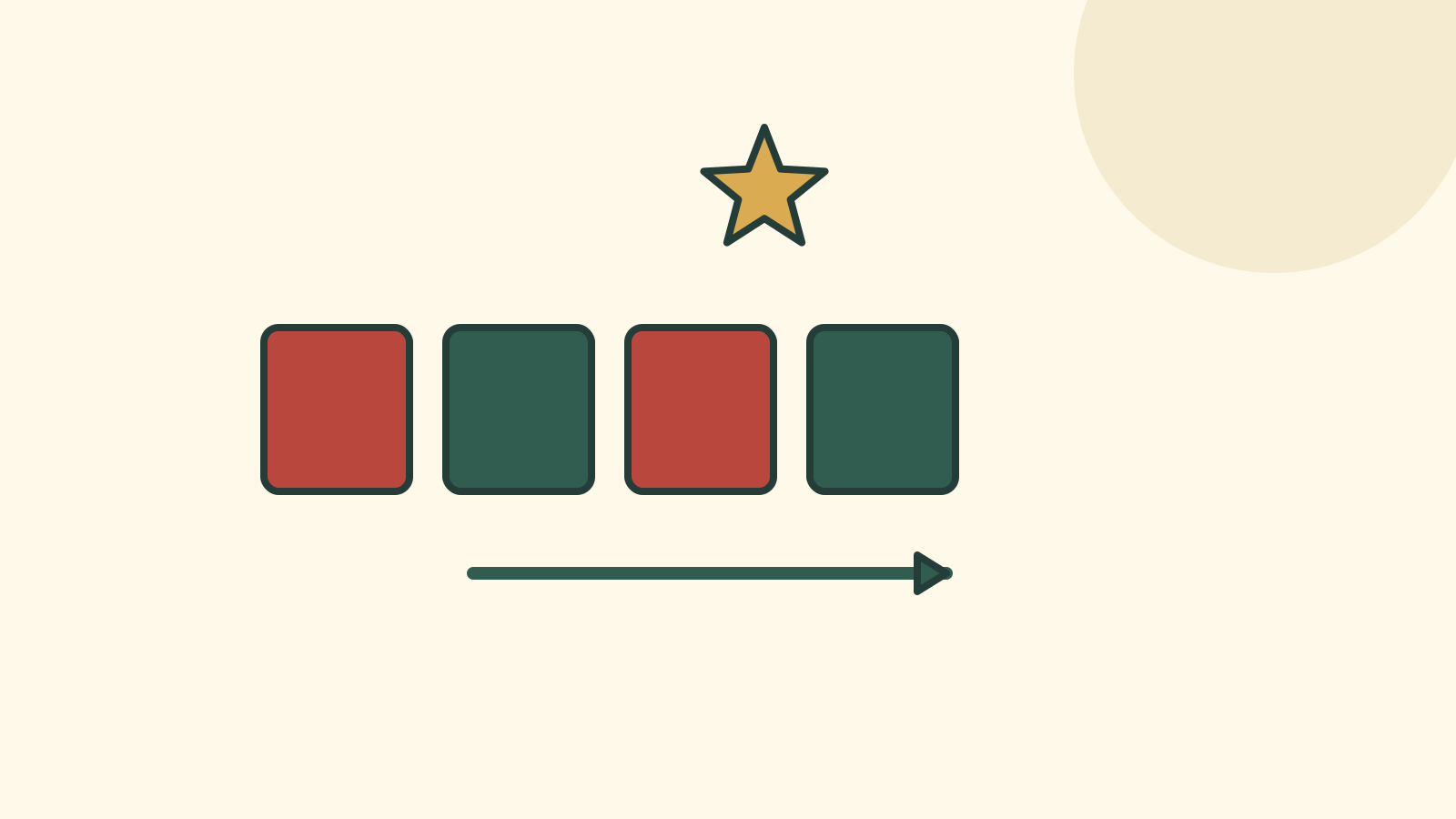
Play the sequence in the tool. If the toy jumps unexpectedly, inspect the neighbouring frames. Look for an out-of-order photo, a large movement or a shifted camera. Change the playback timing deliberately instead of guessing that every scene requires one universal frame rate.
The NFB animation guide explains building movement from successive images. For this scene, check that each photograph advances the same movement before exporting.
Export and play the final file
Use the tool’s actual export function. Keep the project and source frames in an agreed location, then open the exported video with a separate player or on the intended recipient’s device. Check the first and last frames, order and visible action.
If the file does not play, resolve its format or access problem before sharing. Do not merely rename the extension. Share only with the agreed recipients; a private request does not prevent copying.
The finished result is a short playable clip showing the intended toy movement. You can make a second scene later, but complete this export and playback check before expanding the story.